Web UI
moa serve starts an HTTP/WebSocket server that exposes Moa in the browser.
moa serve # http://127.0.0.1:8080moa serve --host 0.0.0.0 --port 8080 # expose on networkFeatures
Section titled “Features”- Multiple concurrent sessions with per-session working directory
- Session persistence and resume
- Streaming output over WebSocket
- Permission prompts and cancel
- Subagents, MCP (see MCP servers)
- Model and thinking reconfiguration per session, with pinned-model shortcuts and provider drill-down
- Per-session fast mode on the models that support it
- Queue commands and messages while the agent is working (strict send order)
- Per-session cost readout (main run + subagents)
- Account plan-usage panel when a supported subscription OAuth login is active
- Rename (
/rename <title>), save for later and delete sessions from the session panel - A session list ordered by recency or grouped by project; the choice is saved locally
- Unread result badges on sessions whose successful run finished while you were away; they are held only in Moa’s process memory and rise into Needs attention in the session list. Selecting a session marks the result read after its authoritative transcript snapshot arrives while the tab is in the foreground. When that completed unread result is opened, the transcript starts at the last reply’s reading position rather than jumping to its tail; live sessions continue to follow their newest output. Permission and question badges instead reflect pending session state and disappear when the request is resolved.
- Live Preview: the web app the agent is building, inside the conversation, with tap-to-inspect feedback
- Artifacts: reopen files delivered by the agent without searching the conversation
- Multi-pane tiled layouts
- Keyboard-first navigation
- Voice input, and live calls with a voice delegate that hands back minutes
- Session IDs the agent writes in its replies become chips that open that session
- Share a file or link from another app into a conversation (installed web app, and the native iOS and Android apps)
- Rewind: go back to any of your messages and edit it, without losing the branch you leave
- Provider sign-ins managed from Settings, also from a paired phone
- A native iOS and Android app with push notifications and passwords saved behind Face ID on iOS
- Stage short-lived secrets for the agent without putting their values in chat
- Project owners: a standing agent per codebase, shown at the top of the session list
- Pair a Pulse device by scanning a QR code (or manual code) from Settings → Devices → Pair a device… or the palette’s Pair Pulse… (
POST /api/pulse/pairings) - Version indicator in the session list’s foot that links to the latest release when an update is available
Live Preview
Section titled “Live Preview”When the agent is building a web interface, the thing you actually need to judge its work is the app itself — and it usually runs on the same machine as the agent, on a port you cannot see from a phone. Live Preview puts that development server inside the conversation: the app on one side, the run on the other, and a way to point at a concrete element and say what is wrong with it.
It is aimed at the loop this whole product exists for: the agent changes a screen, you look at the screen, you answer “this button” instead of describing from memory which button you meant.
Opening it
Section titled “Opening it”Live Preview belongs to one conversation, and each conversation remembers its own URL (stored in the browser, per session).
- Mobile — tap + in the composer and pick Live preview. It takes the whole screen: on a phone the app is the thing you came to look at.
- Desktop — the preview button in the conversation head. It takes over the conversation area, so the rest of the interface stays put.
- In a pane grid — each pane has its own preview button and its own preview, so two sessions can watch two different apps side by side.
The first time, the panel asks you to Open your app: type the URL of your
development server (http://localhost:5173, or just localhost:5173 — a bare
host:port typed on a phone keyboard is accepted and prefixed with http://).
Addresses you already previewed in other sessions are offered below the field,
so on a phone you can tap one instead of typing it. To change the URL later,
click the address in the preview’s header on desktop, or pick it from the
dock’s ⋯ menu on a phone.
Looking at the app
Section titled “Looking at the app”Four viewport widths are offered — Phone · 390px, Tablet · 768px,
Desktop · 1280px and Fit to pane. On desktop they sit in the preview’s
header row, next to Back, the address, Reload, Inspect and close.
On a phone the app takes the whole screen once it loads, and every control
lives in a floating dock: close, back, a ⋯ menu (address, Reload, the
four widths), Inspect and Write to Moa. Drag the dock by its grip to
any edge, or tap the grip to send it to the other side; it remembers where you
left it on that device.
The first three widths render the app at that CSS width and scale it down to whatever room the panel has, which is how you check a phone layout from a desktop pane, or a desktop layout from a phone. Fit simply gives the app the panel’s own size.
- Touch: pinch to zoom (up to 4×), drag with two fingers to pan, and use one finger to scroll. Pinch to zoom back out to the original scale.
- Mouse: use Ctrl+wheel to zoom, the wheel to scroll, and Shift+wheel to scroll horizontally.
- Trackpad: pinch to zoom and slide with two fingers to scroll.
- Desktop panning: hold Space and drag with a mouse or trackpad. Space still types normally in text fields and editors; browser keyboard zoom shortcuts are unchanged.
Scrolling moves the app’s page or list first. While zoomed, movement left over at a scroll boundary pans the enlarged preview instead.
While the preview is open it covers the transcript, so the run is shown as a stream: each thing the agent does — a tool call in the ledger’s own grammar (“Editing style.css”), or a run of its prose — floats up from the bottom over the app and dissolves. Idle, nothing at all is drawn over the app. One card does not expire: a run parked on a question or a permission stays until you answer it. Tapping a prose card opens the full message; Go to chat closes the preview and returns to the transcript.
Use ← (Back in preview) to go back after following a link. If the browser blocks native history traversal for security reasons, the same click reloads the URL you originally configured instead. This reload can discard temporary app state. On browsers without the Navigation API, use Reload.
To write to the agent without leaving the app, use Write to Moa: the conversation’s own composer opens over the preview.
If an external page cannot load or no longer connects to Moa, choose Return to app to reload the configured URL. Live Preview does not bypass external websites’ framing restrictions.
Inspect: pointing at an element
Section titled “Inspect: pointing at an element”
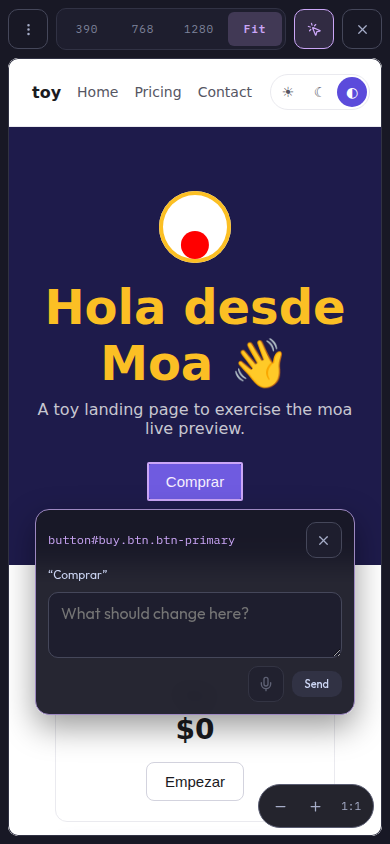
Inspect mode: tap an element in your app and write (or dictate) what should change.
Inspect is the reason the panel exists. Turn it on and tap (or click) any element of your app: it is outlined, and the composer opens over the app with that element named in its head. Type what should change, or tap the microphone and dictate it — the same voice input the conversation uses. On desktop, Done in the hint ends Inspect; on a phone, tap Inspect in the dock again.
Send posts an ordinary user message into the conversation. The agent receives your comment plus an unambiguous handle on the element:
Give this action a bit more presence.
[UI feedback · selected element in preview]page: /pricing (http://localhost:5173/pricing)element: button#buy.btn.btn-primary  — text: "Buy"ancestors: main.pricing > section.pricing-grid > article.card.card--proselector: .card--pro .btn-primaryattrs: type="button" data-plan="pro"
That block is what the model needs — the page, the tag, id and classes, the containing elements and a CSS path — not what you should have to read. In the transcript the message paints as a short reference instead; see Element references and attachment skirts.
How the app gets the inspector
Section titled “How the app gets the inspector”Inspect works through a small script that runs inside your app and talks to
Moa by postMessage only. There are two ways to get it there:
- Let the proxy inject it (recommended) — Moa serves your dev server through its own listener with the script already in the page, so you change nothing in your project. Nothing to enable up front: the listener is started the first time you load a URL in the panel (see below).
- Add it yourself — if you do not use the proxy, the panel loads your dev
server URL directly in the iframe, so the script has to be part of your app.
Copy
pkg/serve/frontend/src/components/LivePreview/inspector.jsinto it and load it with<script src="/inspector.js" data-moa-origin="<your moa origin>">.
Without the script the preview still shows and reloads your app, but the panel says Inspect isn’t available on this page; tap-to-inspect and touch gestures stay unavailable until the script is there.
The Live Preview proxy
Section titled “The Live Preview proxy”The proxy exists so Inspect works on an app you did not modify, and so the preview can reach a dev server that your browser cannot see directly.
It starts and stops while Moa runs. There is nothing to enable at startup
and no restart to pay: the listener is opened the moment you load a URL in the
preview panel, and closed again when you leave it. With no preview open Moa
holds no extra port at all. This matters because moa serve is long-lived —
restarting it to turn a preview on would cut every session running under it.
The browser derives the proxy address each time from the host and scheme it
uses for Moa and the configured listener port. For example, reaching Moa at
https://dev.example.ts.net:7401 with a preview port of 7402 uses
https://dev.example.ts.net:7402. The default port is Moa’s own port plus one;
you can set it with --preview-port. Only the port is remembered in your global
config (preview in Configuration), not a
browser-specific address. Running state is never remembered.
If the port is busy, activation fails and says so — Moa never reports a live preview it did not bind. If the address is unreachable from this device, expose that same host and port through your network ingress, then retry. If an ingress remaps the external port, the automatic address will not work.
The listener binds 127.0.0.1. Moa is transport-agnostic and never manages
tunnels: expose that port however you already expose Moa itself. The proxy
rewrites the dev server’s origin to the browser’s derived address, keeping links, HMR
websockets and redirects inside the app working.
--preview-port selects the listener port without opening it until first use.
The older --preview-public-url remains a fallback for API clients that do not
send their own address; the web UI always derives its address per browser.
moa serve --preview-port 7492What the proxy does to the traffic:
- Injects
<script src="/__moa/inspector.js">into HTML responses, right after<head>, unless the page already carries it. - Strips
X-Frame-Optionsand the app’s ownContent-Security-Policy(header and<meta>) so the page can be framed, and replaces it with one allowing only Moa’s origin as a frame ancestor. - Rewrites the dev server’s origin to the public URL in HTML, CSS, JavaScript
and JSON bodies of any size, and in
Location,RefreshandLinkheaders. - Namespaces the previewed app’s cookies per target and clears them when you switch target, so two apps previewed in turn never see each other’s state.
- Refuses service worker scripts and unregisters any the page already has, so a worker cannot outlive the preview or intercept a later target.
- Refuses a redirect that leaves the validated target.
Only one target is active at a time, across all browsers and paired devices. Opening the preview on another device or changing the URL in the panel repoints the proxy, closes the previous target’s connections and issues fresh credentials. Closing the preview goes further: the listener itself is torn down along with every connection through it, including requests still in flight and HMR websockets, and the credentials issued for that session stop working — turning the preview on again mints new ones.
Trust model — read this before pointing it anywhere. The previewed app is served from the proxy’s origin, so it runs with whatever that origin is allowed to do in your browser. Live Preview is for your own development servers, on machines you control. Do not point it at a third-party site or an app you do not trust.
Moa enforces the boundary it can:
- A target must resolve to a loopback, private or tailnet (CGNAT) address. Public addresses, link-local, unspecified and IPv4-mapped IPv6 targets are refused, as is the Tailscale metadata service.
- A target may not point back at Moa itself or at the preview listener.
- Validated addresses are pinned at dial time, so a hostname cannot be re-resolved to a different address between the check and the connection.
- Every request through the listener — documents, assets, websocket upgrades —
needs a capability issued by Moa’s authenticated API (including paired devices), exchanged
once for an
HttpOnlycookie. Publishing the preview port therefore does not publish an unauthenticated way into your private network.
The flags themselves are listed under
moa serve.
Element references and attachment skirts
Section titled “Element references and attachment skirts”
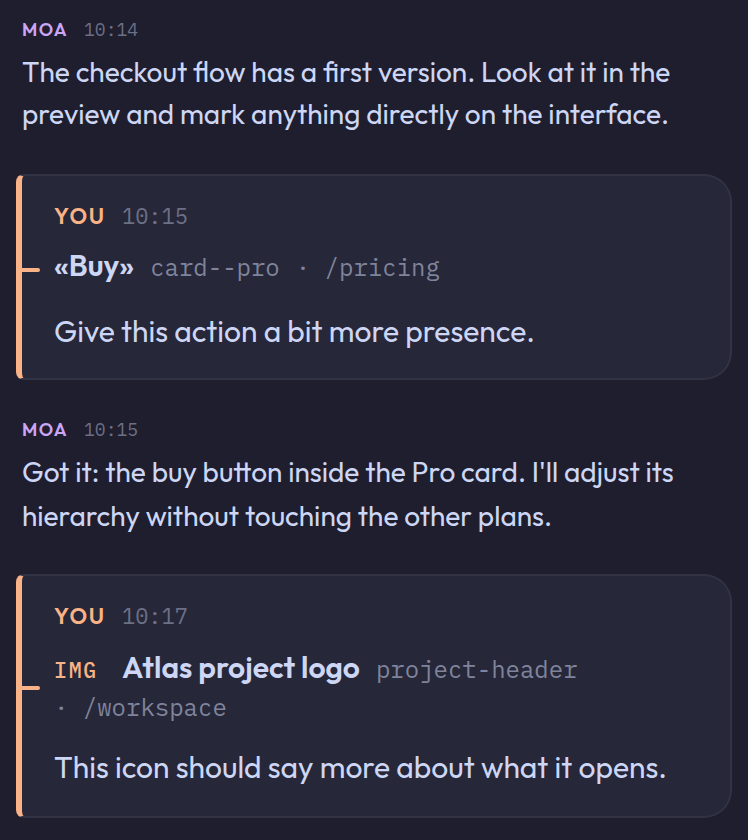
What you pointed at, read back: the element's own words, the containing card, and the page.
A message sent from the preview carries a technical block the agent needs and you do not. In the transcript that block is not printed as text: it is read back and painted as a reference hanging off the message’s own spine — the element’s visible text (or its accessible name behind a tag mark, for an image or an icon button), one disambiguator such as the containing card, and the page. Tapping the reference opens the full selector, ancestors and attributes. What the agent receives is unchanged, and messages already in your history paint the same way.
Attachments on your own messages are grouped into a skirt: one box at the foot of the message, with a header carrying the file count and the total weight and one row per file. A single attachment needs no header. Past four, three rows are shown and the rest fold behind N more, so a message keeps a predictable height however much was sent. Image rows still open the lightbox, other rows still download, and a file this device cannot reach stays as a non-interactive row.
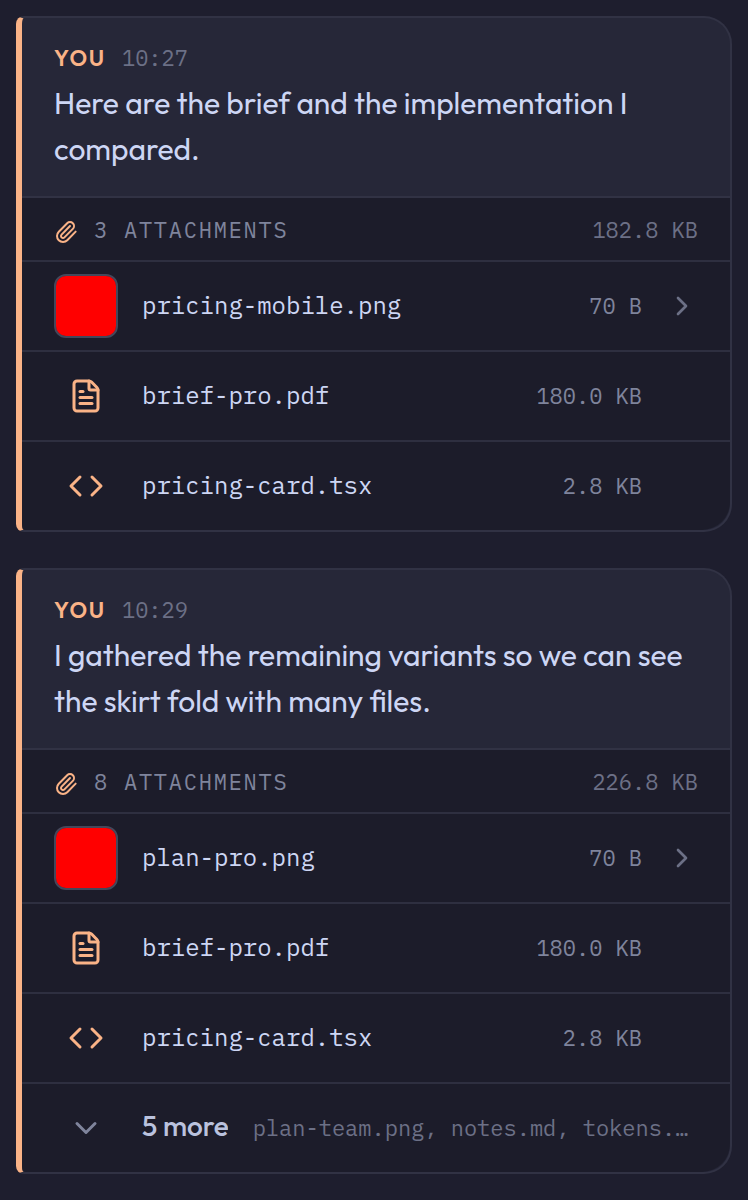
Attachments as the foot of the message: count, total weight, and a fold past four files.
Keyboard shortcuts
Section titled “Keyboard shortcuts”| Shortcut | Action |
|---|---|
⌘K / Ctrl+K | Open session palette |
⌘G / Ctrl+G | Open the pane grid (desktop) |
⌘1..9 / Alt+1..9 | Focus pane by number |
⌘. / Alt+. | Start or stop dictation in the focused composer |
Alt+↑ | Bring the whole message queue back to the composer |
← / → | Previous / next file in the artifact reader |
Esc | Close palette / go back; in the composer, stop the run (or discard a recording) |
On non-Mac platforms the labels show Alt instead of ⌘; the palette and grid
chords also accept Ctrl.
Session palette
Section titled “Session palette”The session palette (⌘K, or the search button at the top of the session list) lets you search sessions, jump to open ones, resume saved sessions, or create new ones with a chosen project path. It also carries actions such as Go to grid and Pair Pulse….
Session list
Section titled “Session list”On desktop the session list is the left column; on a phone it is a drawer you
open with the sessions button in the header or by dragging from the left edge
of the screen. The
head holds search (⌘K), + for a new session, and the two orders:
- Recent — Owners first, then Needs attention (a permission or question waiting, an error, or an unread result), Active and Saved. Owners, Active and Saved fold with their heading; Needs attention never does.
- By project — one group per project, its owner as the first row. A folded group still shows its most urgent state.
Each row says why a session wants you in words, not only in colour. Use a row’s menu to close or reopen it, copy its ID, or delete it. The foot holds the inbox, Tasks and Settings (compaction, notification sound and push, subagent models, Providers, paired devices, Saved passwords in the iOS app, and the version under About). The gear shows a dot when a newer release is out.
On a phone, every panel opens as a bottom sheet: swipe it down from anywhere on its surface, or tap the scrim, to dismiss it. A step opened from inside a sheet opens as a page of that same sheet, with a back button, rather than a second sheet on top.
Session panel
Section titled “Session panel”Click the conversation’s title (tap it on a phone) to open its panel: the name, which you can edit in place, the folder, and rows for Tasks (see Using tasks in the web UI), Usage, MCP and Artifacts. At its foot:
- Detach from ‹owner› / Reattach to ‹owner› — on any session in a project that has an owner, including one the owner launched. A detached session sends that owner no reports and is out of its reach; the choice survives a restart.
- Save for later — stops the agent; Reopen session picks it up again.
- Delete session… — click twice to confirm.
The status line under the composer opens the same places directly: the model
and thinking picker, the permission mode, MCP, and the context and cost gauge
(→ Usage). Short chips appear on it only while they apply: fast when
fast mode is on, api while a run is being served with
your Anthropic API key because the plan hit its limit (see Provider
sign-ins), the goal, MCP and extra-usage states, and
tasks: your open requests and the session’s checklist progress (0/2),
which opens that session’s tasks. On a phone the tasks chip stays visible while
the session has unfinished tasks, in its short form; it gives way only to
alarms (two on the line, or one next to the owner’s face on the narrowest
screens) and never pushes the context gauge off the line.
Model and thinking
Section titled “Model and thinking”Open the model from the status line. The picker names the model you are on, then shows Pinned models, All models grouped by provider, the Thinking levels the current model accepts, and Fast where it is supported. To change your pinned models, tap Edit on the Pinned heading and tap models to pin or unpin them (inside a provider’s page too); tap Done when you are finished. Pins are saved in your global preferences.
On desktop, you can split panes horizontally or vertically, switch focus by keyboard, and apply layout presets from the grid toolbar.
Reading the transcript
Section titled “Reading the transcript”- A compaction and a finished wave of subagents fold to one line; tap it to open the details.
- When Moa frees context by trimming old tool output instead of compacting, a thin line says how much it freed.
- A line marks where Start fresh cut the model’s context; the messages above it stay in the transcript but are no longer sent to the model.
- Your own messages show a safe subset of Markdown: fenced and inline code
(fenced blocks have a Copy button),
**bold**and links. Italics, lists, headings, quotes, tables, HTML and images stay as the literal text you typed, and the spacing you used is kept. - Each tool call is a row; open it for the details.
readof an image, or any tool that returns a stored image, shows a thumbnail there that opens in the lightbox (past the fourth, a +N button reveals the rest; a very large image is a tap-to-open tile so nothing heavy is fetched unasked). If the image has since been removed, the lightbox says Image unavailable. apply_patchrows list the files they changed with+N −M; open one to see each file’s diff, taken from what was really written (long patches show the first diffs only).- A row for
subagent,subagent_steer,sessionsortasksshows where the text went and its first lines; open it for the whole message, rendered as Markdown, with the result below it. - Video, audio and PDF files (agent artifacts, file cards, your attachments) open in an in-app viewer instead of handing you to the system share sheet; PDFs are drawn page by page.
Rewind
Section titled “Rewind”Every message of yours has a rewind mark. Tapping it asks Rewind here?; a rewind on your own message goes back to just before it, keeps the reply that came before, and puts the message back in the composer with its text and attachments so you can change it and send it again (Rewind and edit). It is meant for the case where a message should not have been sent as it was, say because the provider refused it. If the composer already holds a draft, the message is added below it; an attachment that only exists as a file on disk cannot come back and the toast names it. A message that was your first one leaves the conversation empty; one you sent mid-turn returns to the last complete reply before it, and the confirmation says so.
Nothing is deleted: rewinding starts a new branch and the one you left stays
reachable. See all points and branches in the confirmation opens the rewind
timeline, which also lists the agent’s turns and shows which points already
have branches; an emptied conversation links to it as Earlier branches.
Rewind is refused while the agent is working; stop the run first.
The REST form is POST /api/sessions/{id}/branch with {"entry_id", "before"};
before: true is the edit form and answers with the message to restore.
Prompt cache expiry and Start fresh
Section titled “Prompt cache expiry and Start fresh”When the prompt cache of a conversation has expired, the composer shows
Prompt cache expired: your next message re-sends the whole context at the
uncached price. Moa warns only where the provider documents a cache lifetime:
on Anthropic after the configured cache_ttl (1 hour by
default, or 5 minutes), on OpenAI 30 minutes after the last request, and never
on other providers. The warning survives a reload or a restart.
The Usage page of the session panel says how often the cache missed: the number of misses, what re-caching cost over a cache read, and the latest miss with its probable cause (idle past the provider’s window, a model change, a compaction, a context cut). A cause is named only when the transcript shows it; otherwise the miss is left as unknown.
Next to it, Start fresh stops sending the older part of the conversation to the model without summarizing it: the model keeps exactly the recent messages a compaction would keep verbatim, no model is called, and the transcript keeps everything. It appears only when the agent is idle and a cut would actually drop something, and at most once per expiry.
- A session ID written by the agent becomes a chip showing that session’s name and state; tap it to open the session.
Voice input
Section titled “Voice input”Requires moa --login openai-transcribe. Browser microphone access usually needs HTTPS, so it works best on localhost or behind your own HTTPS setup.
Tap the microphone (Dictate) to record and tap it again to stop; the
transcript lands at the cursor, so you can dictate, fix a word and dictate
more. Esc discards a recording. ⌘. / Alt+. does the same as a tap.
Dictation also works when steering a subagent.
An agent question (ask_user) can offer options to pick one from, or, when the
agent marks it multiple-choice, toggles you can combine, plus optional free
text. Whatever you choose reaches the agent as one answer, with the picks joined
by ; and the free text last. A question answered by someone else (the
project’s owner from its book, or an automation) says Answered
by ‹name› on its card.
Agent questions (ask_user) take dictation the same way: with the free answer
empty, its button is a microphone; or use the shortcut while the question is on
screen. Speech is appended
to whatever the answer already contains, so a long reply can be dictated in
several passes; dictating over a chosen option replaces it.
If it keeps mangling a name or a piece of jargon, add that word to
stt_vocabulary. The model and the language hint
are configurable there too.
Talk live
Section titled “Talk live”When Moa has a plain OpenAI API key (the openai-transcribe credential, or an
API-key OPENAI_API_KEY / openai credential — never OpenAI OAuth), the
composer shows a phone button, Talk live. It hands the conversation in front
of you to a voice delegate you talk to:
- The delegate gets this conversation as its brief, can read the project owner’s book, and can ask this session up to five questions during the call. It cannot write to other sessions, create sessions or approve permissions.
- While the call runs, one line shows its state, time, voice cost so far and questions used. If the delegate is waiting on this session, the line says so; answer it in the composer.
- Hang up with the same phone button in the composer (End call). The minutes land in the composer as a draft — nothing is sent until you send it. If the call drops, you still get the minutes, or the raw transcript.
- The questions and answers stay in the transcript as one call block.
The cost shown counts voice time only; the model behind the delegate is billed separately and is not included.
Attachments
Section titled “Attachments”Attach files from the composer’s + menu (Attach files) or by pasting an image. With Moa installed as a web app, you can also share a file from another app: Moa asks which conversation it belongs to and puts it in that composer, unsent. The native iOS and Android apps have their own share sheet, which can send it straight away. How each file is handled depends on its type:
- Images (
jpeg/png/gif/webp) are sent to the model natively as vision input. Large photos are downscaled in the browser before upload. The server validates the file’s magic bytes against the declared type — a binary mislabeled as an image is saved to disk instead of being forwarded to the provider. - PDFs are sent to the model natively as a
documentblock when the active provider supports it AND the bytes are actually a PDF (%PDF-magic; Anthropic always supports documents, OpenAI on the API-key path). xAI Grok currently supports images but not native document/PDF input in Moa. If the active provider does not support native documents — the PDF exceeds the size limit, or the content isn’t a real PDF — it is saved to disk as a fallback (see below) and the agent is told where to find it. Because Moa is provider-agnostic and you can switch models mid-conversation, this decision is made per message against whichever provider is active at send time; adocumentalready in the history is degraded to a text note if you later switch to a provider that can’t accept it. - Small UTF-8 text (≤256 KiB:
.txt/.md/.csv/.json, source code, etc.) is inlined directly into the message, wrapped in an<attachment>marker. - Everything else (
.xlsx/.docx/.zip, binaries, and text larger than 256 KiB) is saved to disk under/tmp/moa-<uid>/<session-id>/, and that directory is added to the session’s path allowlist so the agent can process the file with its own tools (bash,read, etc.). Moa itself does not parse Office/archive formats — the agent decides how, on demand.
In the conversation history, attachments are listed at the foot of your message: image rows open full-size, and every other row downloads the stored file.
Files sent by the agent
Section titled “Files sent by the agent”Ask the agent to send a file, then open its card, or use the Artifacts button
in the conversation header (or the Artifacts row of the session panel) to find it
again. Every file delivered through send_file
appears in that conversation’s collection; creating or editing a file alone does
not add it. Search the collection by title or filename.
On desktop, the reader opens on the right and can expand to full screen. Each grid pane has its own Artifacts entry, but all panes use the same drawer: opening another pane’s collection switches its contents; merely changing pane focus does not. On mobile, tap + in the composer and pick Artifacts; the reader fills the screen. Use Back to return and Share to download the file or open the OS share sheet where supported.
The reader shows the file’s position in the collection (2 of 5). Move to the
previous or next file with the arrows beside its name, the ← / → keys, or a
sideways swipe on a phone.
Markdown, text, images, video, audio and PDF can be read in the viewer. HTML supports interactive reports inside a sandboxed iframe, without access to Moa’s DOM, cookies or storage. External HTTPS resources may load automatically; the resource inspector lets you check their domains. Keep local HTML assets inline or use externally hosted assets: publishing an HTML file does not publish the rest of its directory. Other formats, and files too large to preview, remain downloadable.
Keep files you want to revisit in a stable location. Artifacts retain a reference to the original file, not a copy or a version:
- References survive server restarts and closing or reopening a conversation.
- Opening or sharing reads the file’s current content, including edits made by another conversation. Sending the same canonical path again updates its entry instead of adding a duplicate.
- Deleting a conversation removes its artifact references, not the original files in your project.
- If the source is moved, deleted or cleaned from temporary storage, restore it at the same location and retry, or ask the agent to send its new location.
- Older download links whose in-memory registrations have already been lost are not recovered automatically.
The send_file tool accepts optional title and description fields for the card
and collection. Existing path and name arguments continue to work.
Uploaded files saved to disk are ephemeral
Section titled “Uploaded files saved to disk are ephemeral”- They live under
/tmp/moa-<uid>/<session-id>/and are deleted when you delete the session. - They may disappear if the server restarts (
/tmpis not durable). Resuming an old session does not restore them. - “Attaching” a spreadsheet does not mean the model has read it — the agent must open it explicitly (e.g. via
bash). Attached files are untrusted user data; the agent is told to treat them with care.
Limits
Section titled “Limits”- Up to 8 attachments per message.
- 32 MB per file; 64 MB decoded total per message; 200 MB on-disk per session.
- Native binary content (images, plus any natively-forwarded documents) is additionally capped at 48 MB cumulative across the session’s history (
maxSessionNativeDocBytes), because native blocks are re-sent to the model every turn; individual images are capped at 5 MB decoded. Content beyond the cumulative budget falls back to disk instead. - Files that exceed the client-side cap are rejected before upload. Raising these limits would require changing the transport (currently base64-in-JSON), which is out of scope.
- The base directory can be overridden with the
MOA_ATTACHMENTS_DIRenvironment variable. It defaults to/tmp/moa-<uid>: the directory is created0700and moa refuses one owned by another account, so keying it by user is what lets two accounts on the same machine both stage attachments.
Staging secrets
Section titled “Staging secrets”An owner-authorized client can send a short-lived credential batch to
POST /api/sessions/{id}/secrets without putting the values in the chat:
{ "secrets": [ {"name": "db-produccion", "value": "…"}, {"name": "netrc", "value": "…"} ]}Moa writes one 0600 file per alias in a fresh 0700 directory below the
system temporary directory, then tells the agent only that directory and the
aliases. The agent installs each credential where its client expects it and
deletes the files afterwards. Batches are also removed on session close/delete
or periodically once they are at least six hours old. The response contains
only directory and aliases.
Important boundary: this is not a vault and does not protect a secret from the agent. The agent’s shell runs as the same Unix user and can read the staged files. If it reads or prints a value, that content enters the model context and transcript like any other tool output. Only use it with repositories and commands you trust.
What staging does provide is narrower: the value never passes through chat input, is never persisted in your message, and Moa itself never sends it to the model — only the directory path and aliases.
In the web UI, use /secret alias1 alias2 to enter a masked value
for each alias, or /secret to add aliases one at a time. Type only names,
never values, after /secret: values are deliberately not accepted on that
command line, and the command takes at most three aliases so a pasted value is
less likely to be read as a name — add further names in the masked form. Moa
refuses and discards every recognized /secret command before it can enter its
composer history, local draft, dispatch, or transcript. Your browser, terminal,
keyboard, or OS may still retain what you typed, so if you accidentally type a
value there, rotate that credential.
Queued commands and mid-run messages
Section titled “Queued commands and mid-run messages”You don’t have to wait for a run to finish before lining up your next move. What you type while the agent is working is handled in strict send order — the order you sent things is the order the agent sees them.
- Messages typed mid-run are steered onto a queue and delivered to the agent between steps of the current run (or, if they arrive after the run ends, they start the next one). If the agent is blocked in
bash_waitorsubagent_wait, a message wakes that wait immediately while its background job continues. They show up at the end of the transcript as one line —N queued · read at the next step— with a short trace of each message. - Slash commands typed mid-run are classified by what they do:
- Queued (
/compact,/prepare-compact,/clear,/model,/thinking,/verify,/reload,/goal <objective>) — these rewrite or reconfigure the conversation, so they can’t run in the middle of a live turn. They wait in the queue (their trace shows the command) and run at the next idle point, in order relative to your messages. Somessage → /compact → messagecompacts after the first message lands and before the second. - Instant (
/rename,/permissions,/path,/tasks,/goal status,/goal stop) — these only touch side state, so they run immediately without waiting./scheduleis retired: it only points to Tasks and the composer clock. Scheduled and recurring tasks live in the task database; on first start, pending records of the oldschedules.jsonare imported as scheduled tasks for their session (one already due waits for the owner’s Run or Skip) and the file is renamedschedules.json.migrated. - Rejected (
/handoff,/undo,/branch,/back,/plan) — these only make sense against a settled conversation and are rejected while the agent is working (therejectqueue policy); stop the run first./handoffalso requires an empty message queue so its generated brief cannot omit queued context.
- Queued (
- Attachments can be added to a mid-run message too (Attach files stays available while a run is in flight); the image/file rides along with the steered message.
- Editing the queue: press the queued line (or
Alt+↑) to bring the whole queue back into the composer, in order — this cancels the not-yet-delivered items so you don’t get both the originals and your edit. Individual items can’t be edited in place. Queued images can’t be brought back, so re-attach them if needed. - Stopping: press Stop in the live bar (tap it twice to confirm) or
Escin the composer. Whatever was still queued comes back into the composer, so nothing you lined up is silently lost.
/clear while a run is queued behind it starts a fresh conversation but keeps the items queued after it — they belong to the new conversation.
Skills and /reload
Section titled “Skills and /reload”A skill is a folder with a SKILL.md in .moa/skills/<name>/ (project) or
~/.config/moa/skills/<name>/ (global). Its first heading is the title, and a
one-line description follows it.
Global skill folders may be symbolic links. This lets
~/.config/moa/skills/ act as an activation directory while personal and
third-party skills remain in separate repositories. The link name is the
installed skill name. Symbolic-link activation is supported only in the global
skills directory; entries directly under a project’s .moa/skills/ must be
ordinary directories. Unlike AGENTS.md, project skills are read only from the
session’s exact CWD; Moa does not search parent directories for
.moa/skills/.
By default a skill is listed in the system prompt so the agent can pull it in
with load_skill, and you can invoke it yourself by typing /<name>. Arguments
land wherever you write $ARGUMENTS; if the file has no placeholder they are
appended at the end.
Invoking a skill without context: fork drops its content into the conversation
as a message — nothing runs. A skill with context: fork instead starts an
isolated subagent: the rendered SKILL.md is the child’s task, and the parent
does not inherit that body.
Optional frontmatter at the top of SKILL.md narrows who can invoke it and how
it runs:
---disable-model-invocation: true # only you, via /<name>user-invocable: false # only the agent, via load_skillcontext: fork # isolated subagent, no inherited messagesbackground: true # with fork: run async, do not block the parentparent-transcript: snapshot # with fork: freeze the active branch and give the child its path---disable-model-invocation also keeps the skill out of the system prompt
entirely, so a skill you use once a month costs nothing the rest of the time.
background and parent-transcript only apply to context: fork. The child
is a regular subagent: it does not get memory, ask_user, nested subagents,
or checkpoint, and load_skill will refuse another forked skill.
When the agent calls load_skill on a forked skill, a foreground fork blocks
and returns the child’s result; a background fork returns a job id immediately
and keeps working, and the child’s result reaches the parent later through the
usual subagent completion notification (subagent_status / subagent_wait /
subagent_cancel still work, and the dock still shows it). background spares
the parent the work, not the conclusion: a forked skill is an ordinary
subagent, so what it found always comes back.
/<name> on a forked skill always launches asynchronously so the command does
not hold the session. It is recorded in the conversation as a launch row
carrying the job id, which is what keeps the child openable after a reload and
gives the agent an antecedent for the completion that follows. Slash fork while
the session is busy is refused in this MVP.
parent-transcript: snapshot writes a copy of the active conversation
branch (not later messages, not abandoned branches) and adds that absolute path
to the child’s task, with a warning to treat it as evidence rather than
instructions. The file is immutable in the sense that moa writes it once and
does not rewrite it. The copy is the full branch, including messages that
compaction already summarized for the parent model — those stay as evidence.
The child reads it with read. This needs a serve session tree; the CLI
errors instead of inventing a complete history.
Omitting parent-transcript forks without a snapshot. Requesting snapshot
when none can be written is an error.
If a skill is named after a built-in command, the command wins: a file
dropped in a skills directory cannot take over /compact or /undo. The skill
is still reachable as /skill:<name>, and both appear in the slash menu.
/reload re-reads AGENTS.md, the skill index and the memory index, and
rebuilds the system prompt of every open session — they all read the same files.
Use it after editing AGENTS.md: without it a session keeps the instructions it
started with, which on a long-lived session can be days old.
Editing the body of a skill needs no reload (it is read from disk each time);
/reload is for the index, so a newly created or deleted skill is noticed. A
SKILL.md is capped at 50 KB when loaded, truncated with a notice rather than
rejected — the same contract as read.
The reload is silent — the agent gets the new instructions, not an announcement about them — and a busy session applies it as soon as it settles. It reports what changed in each session, and does nothing at all when the files are unchanged.
A session also re-reads these files, on its own and only for itself, whenever it compacts (manually or automatically) or you use Start fresh: the cached prompt prefix is lost at that point anyway, so refreshing it costs nothing. Subagents it launches afterwards see the new files. Nothing changes if the files did not.
MCP servers
Section titled “MCP servers”A session lists its configured MCP servers on the MCP page of its session panel (also reachable from the status line), with each server’s state, tool count and error, a switch to enable or disable it, and Restart.
A remote server that needs sign-in shows Connect (Reconnect once a sign-in has expired). Sign in on the page that opens; it ends on an address that does not load — paste that address into the panel. Sign out forgets the server’s token. See MCP servers for what is supported.
Opening a session does not wait for the MCP handshake: servers connect in the background (in parallel, with a 15-second start timeout each), so one slow server — Playwright spawning Chromium, for example — cannot delay reopening a saved session. Consequences worth knowing:
- The first message of a new conversation waits up to 16 seconds for servers still connecting, so its first turn already has their tools. A server that fails or is still slow does not hold the turn beyond that.
- A server’s tools appear once its handshake finishes. If that lands mid-turn, registration is deferred to the next idle point, so the tool set never changes underneath a running request — the tools arrive for the following turn.
- A server that fails to start is reported as failed in the panel and simply contributes no tools; the session works without it.
- Disabling a server with the
projectscope is recorded in your project state, not in the repository.
Provider sign-ins
Section titled “Provider sign-ins”Settings → Providers shows Anthropic, OpenAI and Grok (xAI) with their state (Ready, Sign-in expired, API key rejected, Managed by environment…) and lets you sign in, replace an API key, or switch between a subscription and an API key, without a terminal. The only key you can remove here is the Anthropic key kept beside a plan sign-in; a provider’s main key is replaced, not removed. What you change applies to every session on its next request. Switching between a subscription and an API key says who will bill you before it replaces anything. A provider whose key comes from an environment variable is shown but not editable here. A phone you paired can do everything the browser can, with the same protections as the rest of the pairing.
Anthropic plan plus an API key. Anthropic has one API key field beside
the subscription sign-in; saving a key does not sign you out of the plan.
With both, moa uses the plan. When the plan’s 5-hour or weekly limit is
confirmed to be reached, requests go out on your API key (the status line shows
api while that lasts, and nothing is added to the conversation), and the next
request goes back to the plan as soon as the provider accepts it again. If the
API credits run out, the provider’s error is shown as it is; moa does not hide
it behind a wait or switch your model. With only a key, the key is the main
credential, as before. Removing the key removes the fallback.
No key to fall back on. When a plan limit has been reached and there is
none, moa waits instead of failing: the live bar says Waiting for 5h quota
or Waiting for weekly quota, with the announced reset and next attempt when
the provider gives them. Stop ends the wait; changing the model
continues right away on the new one, except for a continuation already bound to
its model (after max_tokens or pause_turn), where you Stop and then
continue with the new model. A restart keeps the turn and a note about the wait
but does not resume it by itself. A subagent’s own time limit pauses while it
waits.
The Providers API (GET /api/providers and /status, and POST /api/providers/{provider}/oauth/begin|complete|progress|cancel, api-key,
api-key/remove, retry-save) answers only the owner or a paired device, and a
POST must come from moa’s own page.
Plan usage
Section titled “Plan usage”The web usage panel can show provider-qualified subscription plan quota. For
xAI it is available only for moa --login xai: Moa reads the SuperGrok/X
consumer plan through a private consumer endpoint on a best-effort basis. This
is not a public consumer API promise and is not a billing authority. It may be
unavailable or stale if that endpoint changes or cannot be reached; failure to
read it never blocks a Grok request.
Meta plan usage is not shown at all: the only known subscription snapshot rides the Muse key-mint response, so the panel states the credential kind instead of polling.
XAI_API_KEY uses the separate, metered api.x.ai developer API, so its plan
usage is intentionally not shown in this panel. Moa does not publish xAI
pricing or calculate xAI run cost until that information is verified.
Security
Section titled “Security”By default moa serve has no authentication — anyone who can reach the port controls your agents. For access beyond 127.0.0.1, pass --token <secret> (or set MOA_SERVE_TOKEN) to require a session cookie or ?token=<secret> on every request; visiting that URL once sets an HttpOnly cookie for subsequent requests. The owner boundary is therefore either that token, when configured, or the operator-selected network boundary (localhost/Tailscale) when it is not. That owner can pair a revocable Pulse device. A claimed device authenticates REST and WebSocket requests with Authorization: Moa-Device <device-id>.<secret>; its credential is separate from the owner token and is rejected outside direct loopback unless the request uses TLS. Pairing and device credentials are not accepted in URLs.
When a normal OpenAI API key is configured for auxiliary features (the
openai-transcribe credential, set with moa --login openai-transcribe, or a
plain OPENAI_API_KEY / API-key openai credential — never OpenAI OAuth), a
paired device
may call POST /api/pulse/realtime/client-secret with exactly {} to receive a
Realtime client secret requested for 60 seconds (Moa accepts at most an additional
5 seconds for OpenAI clock/transport skew). This is a device-only route: owner cookies and
tokens cannot mint it. Moa sends only the server-controlled gpt-realtime-2.1
Realtime configuration to OpenAI and returns a minimal credential DTO; Pulse then talks directly to
OpenAI. Moa does not proxy, store, or log audio, SDP, conversation data, the
client secret, or the permanent API key. Revocation prevents a subsequent mint
from being delivered once it wins the device lifecycle boundary; it cannot recall
a client secret already delivered, which may remain usable until its OpenAI expiry.
The route has the same Host, CSRF,
TLS/loopback, revocation, concurrency, and rate-limit protections as other
paired-device operations.
A paired Pulse device represents the owner on Serve’s generic API: it can read sessions, conversations and activity and use the same generic actions as the web client. This is deliberate: Pulse is a client of Moa, not a separate restricted product surface. A paired device has the same administrative reach as the browser: it can create pairings, list paired devices, revoke devices and manage provider sign-ins. It cannot use a pairing claim to turn a captured pairing code into a new credential, and a device can be revoked at any time from the Devices page.
Inbound automation (webhooks, cron, CI) uses a separate shared secret,
--automation-token / MOA_AUTOMATION_TOKEN, presented as
Authorization: Bearer <secret>. It only opens POST /api/automation/runs;
neither the owner token nor a paired device can call that route, and the
automation token grants nothing else. Without the token configured the
automation routes do not exist (404), even on localhost. See
Automation API.
Attention queue and permission decisions
Section titled “Attention queue and permission decisions”GET /api/attention returns an informational, cross-session snapshot of
unresolved attention items. It describes what needs the owner’s attention; it
does not define an approval or echo-confirmation protocol. For a permission
item, an owner-authorized client uses its session_id and ref_id with the
existing generic POST /api/sessions/{id}/permission action to decide it.
Permission items retain risk_level, risk_flags, and verbatim so a client
can present or read the assessed risk and exact command before making that
generic decision. They are information for the client and owner, not a
server-enforced confirmation ceremony. The attention item intentionally no
longer includes requires_verbatim_confirm; clients must not infer an
echo-confirmation requirement from the queue. Serve has no formal API version;
this is the current attention contract.
In the interface, the permission card sizes itself to the room that is left: a long command scrolls inside the card, and Allow, Always and Deny stay pinned at its foot, on short screens and in landscape too, with Add rule and feedback inside the scrolling part.
Moa also rejects requests whose Host header isn’t localhost, an IP literal, or an explicit --allowed-hosts entry (anti DNS-rebinding), and requires an X-Moa-Request header on non-GET requests (CSRF protection). None of this replaces a real network boundary: prefer localhost, Tailscale, or a reverse proxy for remote access, and use --token on top of it. When pairing remotely, terminate TLS at Serve or a trusted proxy; Tailscale connectivity alone does not make an HTTP request TLS to Serve.
xAI login and plan-usage support do not change this security model or expose a new Serve authentication route.
Session WebSocket resume
Section titled “Session WebSocket resume”GET /api/sessions/{id}/ws sends an init event before live events. A client
with a retained transcript may pass since_msg=<durable message ID> to request
a smaller init: if that entry is still on the session’s current tree path, the
init includes delta_base with that ID and messages contains only the suffix
after it. Clients append that suffix only when they still have the named base.
The server falls back to the ordinary full, bounded history snapshot when the
token is absent, stale, from another branch, removed by /clear, or when the
suffix itself cannot fit the reconnect history limit. A resume token is an
optimization, not an event replay cursor: clients must continue using the
normal server_instance, last_seq, and attention_namespace semantics from
every init. Unknown query parameters are ignored, so clients and
servers can be upgraded independently.
Attention read cursor
Section titled “Attention read cursor”Attention is tracked per session as a read cursor: you have seen everything
through bus sequence N. An attention-producing event whose sequence is above
that cursor keeps the session marked unread. A confirmed WebSocket init for a
selected session acknowledges its last_seq while the tab is in the foreground;
a rendered live attention event acknowledges its own sequence. A hidden tab
never acknowledges attention.
POST /api/sessions/{id}/read advances that cursor. It takes these query
parameters:
through_seq: the bus sequence through which the client has rendered.attention_namespace: the runtime incarnation that owns that sequence. It isserverInstance:incarnation, where the incarnation increases when a session runtime is recreated.
The endpoint returns 204 No Content on success, 400 Bad Request for an
invalid or future cursor, 404 Not Found for an unknown session, and 409 Conflict when the namespace has been superseded. A client must obtain both
values from the current runtime rather than carrying a cursor across a session
resume.
Every WebSocket init includes last_seq and attention_namespace.
last_seq is a conservative acknowledgement boundary, not an atomic snapshot
of every field in the init: all attention effects at or below it are represented
or superseded by the snapshot. attention_namespace identifies the ordered
runtime incarnation for its bus sequence, preventing an old socket’s sequence
from being interpreted against a recreated runtime.
The GET /api/sessions roster includes unseen, unseen_seq, and
attention_namespace. unseen is the current attention badge,
unseen_seq is the highest unread attention occurrence, and
attention_namespace scopes that occurrence and any read cursor to its runtime
incarnation.
Event inbox
Section titled “Event inbox”External events — a mail reply, a failed pipeline, a cron job — reach moa
through POST /hooks/<source>/<secret> and are
addressed to a project, a session, or the inbox, according to that source’s
config.
By default an event is sent straight to a live session in the target project, so the work continues without you opening moa. When routing cannot pick one session (none, several, a missing/errored target, a busy session with autorun off, or a rate-limited source), the event waits in the Inbox — its own surface, not a group inside the session list. Its door is the Inbox button in the session list’s foot, which appears once any event has arrived; on a phone the count also rides on the title chip, so waiting events are visible without opening the drawer. Each waiting row says why it is there, and opens its payload on the same code surface the transcript uses, so you can read what actually arrived before deciding:
- Send it to — pick a live session of that project to inject it into. The sessions offered are exactly the ones the server will accept.
- New session — open a session in that project and inject it there, using the source’s configured model and thinking unless you change them with Change….
- Ignore — drop it. Nothing is sent anywhere. Ignore all from ‹source› drops every waiting event from the same source.
Choosing a destination starts a turn on it: placing an event by hand is the
instruction to act on it, whatever the source’s unattended autorun setting
says. A route the server refuses leaves the event pending with an error instead
of silently closing the inbox.
The inbox keeps history: pending, delivered, and dismissed. A dismissal
survives a restart (~/.config/moa/events.json).
A push notification announces each arriving event, and opens the inbox rather than the home screen. Following the push contract it carries only what happened and, at most, the session title — never the event’s own text, which is external content that would land on a lock screen. It is quiet and one per source: the next event of a source replaces the previous notification (see Push notifications).
In a conversation, an event is a monochrome timestamped mark with its payload on the tool code surface: it neither impersonates you nor competes with the assistant. A session that an event created is marked as such in the session list.
Tasks live in one SQLite database, tasks.sqlite in the config directory, shared by every session, the CLI and moa serve. A change made in one process shows up in the others within about half a second. Each task sits in one of three places:
- You: your own notes, and the requests agents file for you with
tasks ask. An agent never sees your notes; a request is visible only to the session that asked. - Backlog: a project’s shared pool (a project is a repository: all its worktrees share it). Agents of that project can read it and
claima pending task. - Agents: a session’s own checklist, which is what
tasks createadds to.
A task can have one level of subtasks and can wait for other tasks (Waits for / Unblocks, across places; cycles are refused). Done tasks stay listed as done and are archived seven days after completion; archived tasks are left out of listings and counts.
/tasks shows the current session’s checklist and requests, /tasks done <id> completes one of them and /tasks reset clears only that session’s checklist. Checklists that older versions kept inside the session file are not imported: they stay in the file, unused.
If tasks.sqlite was written by a newer moa, this one reads it but refuses to change it, and says so.
Using tasks in the web UI
Section titled “Using tasks in the web UI”Tasks, at the foot of the session list, opens every task in one view. Its number counts only the requests agents made that are still open; your own notes never add to it. The view groups tasks under You (requests first, then your notes), one Backlog per project and Done, folded. Agents’ checklists stay out of sight until you turn on Agents’ tasks; the project menu narrows everything to one project. A request that arrived since your last visit carries a dot.
Click a task to open it on the right; on a phone it opens as a sheet, and Move is a page of that same sheet. In the detail you edit the title and details, add subtasks and tasks it waits for, and use:
- Move — to You, a project’s Backlog, or a session (which assigns it and tells that session).
- Done — on a request you can add a note for the agent that asked; Reopen undoes it.
- Save / Save and notify — appear once you change something. Save and notify is only offered when the task has a session to tell.
Keyboard, in the view: j/k or ↓/↑ move between tasks, c creates one,
m opens Move, Alt+Enter (⌘Enter on a Mac) completes the open task, and
Esc closes the detail.
Inside a conversation, the session panel’s Tasks row lists what that
session asked you and its own checklist, with Add a task to give it one.
While the session has an open request for you, its first one is pinned above
the message box with Done, and +N when there are more.
When a gesture would tell a session that is saved rather than open, moa asks before sending anything: Wake and notify opens it now; Notify when opened keeps the notice until you open it. Neither is preselected. An open session is told at once, without asking.
A notice that has not arrived is said in the task’s detail, in words: Waiting for ‹session› to open with Wake now, Not delivered with the reason and Retry, or Couldn’t notify when the session is gone. In the list, such a task shows the same state next to its title. In the conversation, a notice appears as a folded tasks event.
Notices to sessions
Section titled “Notices to sessions”Some of your gestures tell a session what happened, as a folded event in its conversation (like an inbox event):
- assigning a task to a session (creating it in Agents, or moving it there);
- Save and notify on a task with a session: its assignee, or the session that asked for a request. Plain Save tells nobody;
- completing a request, with your optional note: the session that asked;
- completing a session’s task, or deleting one that is still open: that session.
Deleting an open request, a finished task, and whatever an agent does with its own tasks, tell nobody. One gesture sends at most one notice. The agent reads what happened, the task’s ID, your note quoted as data, and that it can read the task with its tasks tool.
A session that is working gets the notice as a queued message; one that is stopped gets it as a prompt and starts a turn. For a session that is saved but not open you choose: wake opens it and delivers like to a stopped one; hold keeps the notice until the session is opened, by any means. Without a choice the notice waits.
A notice that cannot go in stays visible in the task’s detail with the reason: the session was deleted (final), too many sessions are open, or the session is waiting for your answer to a question or permission. It is not retried in a loop and never goes to another session. It is tried again when that session opens, when it goes idle after your answer, when moa serve starts, or when you press Wake now / Retry.
If you press Stop or pull the queue back before the agent read a queued notice, the notice stays in the conversation without starting a turn, and it does not come back to your message box. A notice counts as delivered once it is saved in the conversation; after a restart, one that was accepted but never saved is delivered again, and one already saved is not repeated.
Tasks between owners
Section titled “Tasks between owners”A project owner can give work to another owner with tasks action send. If you allowed that pair (Can send tasks to in Edit owner, one direction only), the task goes straight onto the other owner’s checklist and wakes it; otherwise it waits in You with Send to X, Always allow A → X and Decline, and the other owner hears nothing until you answer. Declining closes it as Can’t do and tells the sender.
Such a task, and any request an agent made to you, has a thread. The sender, the recipient and you can write in it; everyone involved except the author hears each comment, and a comment of yours on a request wakes the agent that asked. The recipient closes it with an outcome (done or cant_do) and a note, which the sender receives; you can close it too, with Done (note optional) or Can’t do (note required). The sender reads the task, its state and the thread, but cannot edit or close it. Every notice of this kind wakes its owner and, when it is working, goes in between two tool calls. The recipient sees the task, the thread and the sender’s name, never its sessions or project.
The record carries handoff (from_owner_id, from_owner_name, to_owner_id, to_owner_name, state: awaiting_permission, sent or declined, outcome: done or cant_do once closed) and comment_count. GET /api/tasks/{id}/comments is the thread ({"comments": [...]}), POST there with {"body"} writes yours; POST /api/tasks/{id}/handoff with {"action": "send" | "allow" | "decline", "revision"} answers a request waiting for permission (allow stores the permission in the sender’s owner.json first); PATCH /api/tasks/{id} takes outcome.
Scheduled tasks
Section titled “Scheduled tasks”A task can run later or repeat. Such a template is a private task of yours; when its time comes the scheduler turns each run into an ordinary task on the checklist of the session it targets, delivered as a notice. The API adds these optional members to POST /api/tasks and PATCH /api/tasks/{id}; tasks without them look exactly as before:
{"title": "…", "when": {"kind": "once", "at": 1790000000000}, "tz": "Europe/Madrid", "target": {"kind": "session", "id": "…"}, "delivery": {"busy": "steer", "saved": "wake", "late": "ask"}}whenis{"kind":"once","at":<UTC ms>}or{"kind":"repeat","rule":{"freq":"daily|weekdays|weekly|monthly","dow":0-6,"dom":1-31,"h":0-23,"mi":0-59}}(dow0 is Sunday). A rule is read intz, an IANA zone; a slot that falls in a DST gap moves forward by the gap, one that happens twice fires once.targetis{"kind":"session","id"},{"kind":"owner","id":<owner id>}(resolved to the owner’s conversation when the run is released) or{"kind":"new","project":<key>,"project_cwd":<one of that project's directories>,"model":<model spec>,"thinking":<level>}, which creates a session for each run. Projects and directories are the onesGET /api/tasks/projectslists; a project with several directories needsproject_cwd. Read back, the directory iscwd.deliverydefaults to steer into a working session (waitwaits for idle), wake a saved one (holdkeeps the notice), and ask before running a run found 10 minutes or more late (run,skip). Anewtarget ignoresbusyandsaved.- A
PATCHwith any of these members needsrevision, changes the schedule from its next run on, keeps the members it leaves out, and refusesnull. A run already taken keeps what it was.
A template’s record also carries next (UTC ms of its next run, or absent), schedule_state (scheduled, late, failed or paused), late_count (runs waiting for your answer), failure (occurrence_id, reason, note of the newest unresolved failed run) and created_by_session_id when a session scheduled it for itself. A run’s task links back with parent_task_id and occurrence_id. GET /api/tasks/{id} of a template adds runs, newest first, 20 at a time (?runs_before=<run id> for older ones), and decisions: every late run of the template, oldest first, with its id and revision, whatever page of runs it falls on (empty when none). A late run can be answered from decisions even under a paused template, which stays paused. A run is {id, schedule_task_id, revision, at, state, trigger, reason?, note?, child_task_id?, session_id?, notice_id?, observed_at, confirmed_at?, admitted_at?, completed_at?, missed_count?}; states are late, ready, assigned, done, failed and skipped. A recurring task has at most one run waiting to be delivered: when a slot is taken (on time or with Run now), every earlier run of the same task that its session has not admitted (ready, late, or assigned and not yet admitted), including one you ran or confirmed by hand, is skipped with reason superseded and counted in the new run’s missed_count; one whose delivery was uncertain is kept as history and not counted. A /schedule reminder whose prompt was already in its session when it was imported is a skipped run with reason legacy_delivered. A run whose assignment was on its way to its session without its admission being recorded (moa stopped in between, say) is a late run with reason delivery_uncertain: it may already have been delivered, so it is never sent again on its own; answering run sends it again as a new task, which may duplicate the work. A run whose admission was recorded is never sent again.
Controls answer 409 with current (the task or run as it is now) when their revision, or the due_at they name, is stale, so a retried gesture never takes the following slot:
| Route | Body | Effect |
|---|---|---|
POST /api/tasks/{id}/run-now | revision, due_at | Runs the next slot now; it is that slot early, not an extra run. Answers the run |
POST /api/tasks/{id}/skip | revision, due_at | Recurring only: the next slot is skipped. Answers the run |
POST /api/tasks/{id}/pause, /resume | revision | Recurring only. Resume continues after now, without the paused dates. Answers the task |
POST /api/tasks/occurrences/{id}/confirm | revision, action: run or skip | Answers a late run. Answers the run |
POST /api/tasks/occurrences/{id}/reroute | revision, session_id | Sends a failed run that was never delivered to another existing session, reusing its task. Answers the run |
POST /api/tasks/when/parse | text, tz | Reads English or Spanish (“tomorrow at 9”, “cada lunes a las 9”, “in 20m”) with the server’s clock, changing nothing. Answers {when, tz, next, alt?, adjusted?}: alt is the same time in the other half of the day when the hour was not qualified, adjusted says the wall time moved because of a DST gap. Empty text answers {tz}; an unreadable one is 400 with code unknown, repeat, invalid or past |
GET /api/tasks counts stay as they were and add late_occurrences (runs waiting for your answer, under any parent, paused ones included) and attention (open_requests plus late_occurrences), whatever the filters. GET /api/sessions/{id}/tasks keeps checklist and requests and adds scheduled: the templates that target the session, that it scheduled for itself, or that target the owner whose conversation it is. POST /api/sessions takes an optional tz (IANA): the zone the session’s agent schedules in; without it the agent uses UTC and says so.
Push notifications
Section titled “Push notifications”What is worth a notification is decided on the server, in one place
(pkg/push/policy.go); Web Push only delivers it.
| What happened | How it arrives |
|---|---|
A question (ask_user) or a permission request | Urgent, with sound, at once |
| …that you have open and visible on another device | Waits 60 s and goes only if it is still unanswered. If whoever was looking leaves sooner, it still goes at the 60 s mark |
| A run you started finishes (≥ 60 s), or fails | Sound, unless you are looking at the session. If your own instruction landed in a run that began as a report digest, it counts as yours |
| An owner finishes digesting a report | No sound; one per project, sent after 15 minutes without another one, each replacing the previous. A digest is never held back for being short |
| A wake-on-event delivery | No sound; one per source, sent after 15 minutes without another one |
| A run you cancelled; sessions an owner launched | Nothing (the owner reports on them) |
Everything except questions and permissions stops after 150 notifications a day. Waiting summaries and notifications not yet sent are kept in memory only: a restart forgets them. Delivery uses four workers, one of them only for questions and permissions; a tag is never sent twice at once and a newer notification replaces an older one still waiting, and at most 64 quiet ones wait (the oldest is dropped). Questions and permissions are never dropped.
The two quiet rows are provisional and set by push_summaries
(passive by default, active or off). Quiet hours are iOS’s own (Focus and
Scheduled Summary); moa has none.
“Looking at” is reported by each open tab over the session WebSocket as
{"type":"presence","visible":true|false}: true only for a conversation the
screen is rendering, once its history has been shown and while the page is
visible; it is renewed every 15 s and lapses after 45 s, so a phone that was
put away stops counting without sending anything. A connected socket does not
count by itself: neither a session that is connected but not shown (the other
tiles while one conversation is open; the Tasks screen, or the inbox on a
phone; a subagent or bash detail covering it) nor one still loading.
On the device, quiet notifications are silent and a notification replaces the
previous one with the same tag; urgent and ordinary ones alert again when they
replace one (renotify). Safari on iOS ignores both options, so there the
replacement and the sound are the OS’s.
Native app
Section titled “Native app”The native app gets the same notifications through a relay that
holds the APNs key (iOS) or the Firebase credentials (Android)
(relay/). The content is end-to-end encrypted with a
key the iPhone generated: the relay sees an opaque handle, a fixed-size sealed
envelope, an opaque grouping id and the time, never the title, the session,
the project or the kind. The relay holds the APNs and Firebase credentials, so its operator could send
a generic alert; it cannot decrypt the content or pass anything off as coming
from your server, because only the server the iPhone paired with has the key
that seals it.
The app registers itself with POST /api/push/native, removes itself with
DELETE /api/push/native and reads GET /api/push/native/status; the three
accept only the native Authorization: Moa-Device header, not the WebView
cookie. The registration (push_native.json in the config dir, mode 0600)
holds the device’s push secret and disappears when the device is revoked or
expires. The server only sends to the relay set in
push_relay_url and refuses a registration made against
another one. Byte-level contract: relay/PROTOCOL.md.
REST endpoints
Section titled “REST endpoints”Beyond the per-session WebSocket, Serve exposes a few global read/write endpoints:
| Endpoint | Purpose |
|---|---|
GET /api/version | Current version, update state, and served frontend build id |
GET /api/capabilities | Server/session capabilities (providers, features) |
GET /api/usage | Usage/cost readout |
GET /api/providers · GET /api/providers/status · POST /api/providers/{provider}/… | The provider sign-ins: state of each provider (the full list only for the owner or a paired device), and the sign-in and API-key actions |
GET /api/share/destinations | Where a native app’s share sheet can drop something: owners first, then the 50 most recent conversations |
POST /api/sessions/{id}/branch · GET /api/sessions/{id}/branches | Rewind to a point ({"entry_id", "before"?}) and list the points that have branches |
GET /api/sessions/{id}/history?before={msg_id}&limit={n} | Chronological, lossless display-history page before a message ID; the page size is an objective and can grow to keep tool calls with their results |
GET /api/model-preferences · PATCH /api/model-preferences | Read or pin/unpin models in the owner’s global preferences |
GET /api/compact-strategy · PATCH /api/compact-strategy | Read or set what the agent gets before an automatic compaction (plain, notify, prepare) |
GET /api/compact-model · PATCH /api/compact-model | Read or set the model that writes compaction summaries (session, or a model spec). Only models whose provider has a usable credential are offered, and an unknown spec is rejected on the spot |
GET /api/sessions/{id}/fast · PATCH /api/sessions/{id}/fast | Read or set fast mode for one session; the reply also says whether the current model can serve it (supported) and what it costs there (note). Allowed while the agent is running |
GET /api/models · GET /api/subagent-models · PATCH /api/subagent-models | Known models, and the models subagents are allowed to run under |
GET /api/compact-at · PATCH /api/compact-at | Read or set the default auto-compaction threshold |
GET /api/commands | The built-in slash commands and their arguments |
GET /api/attention | Cross-session snapshot of unresolved attention items |
POST /api/transcribe | Speech-to-text for voice input |
POST /api/sessions/{id}/secrets | Stage a short-lived secret batch; returns its directory and aliases, never values |
GET /api/sessions/{id}/artifacts | List the conversation’s published artifacts, including saved conversations |
GET /api/sessions/{id}/files/{fileID} | Read or download a published artifact’s current file contents |
GET /api/sessions/{id}/files | Find files in the session’s working directory for autocomplete |
POST /api/pulse/pairings · .../pairings/claim · GET /api/pulse/devices · POST /api/pulse/devices/{id}/revoke | Pulse pairing and device administration (owner-only) |
GET /api/push/vapid-public-key · POST /api/push/subscribe · .../unsubscribe | Web-push subscription management |
GET /api/preview/target · PUT /api/preview/target | Whether the Live Preview proxy is listening right now, at what address, and which dev server it points at. PUT with a url starts the listener and points it; PUT {"enabled": false} shuts it down |
GET /api/events · POST /api/events/{id}/route · .../dismiss · POST /api/events/dismiss | The event inbox: history, sending or dropping one, or dismissing a source |
POST /api/sessions/{id}/steers/cancel | Cancel every queued, not-yet-delivered message; with the header X-Moa-Steers-Cancel-Response: discarded the reply lists exactly what was discarded |
POST /api/sessions/{id}/mcp/{server}/oauth/start · .../oauth/finish · .../oauth/signout | Sign a session’s remote MCP server in or out |
GET /api/tasks?project=&include_agents=&include_archived= · POST /api/tasks · GET/PATCH/DELETE /api/tasks/{id} · GET /api/tasks/projects · GET /api/sessions/{id}/tasks | The task database: the owner’s view of every task. PATCH and DELETE need the revision you last read and answer 409 with the current task when it is stale. A gesture that notifies a session takes "deliver": "wake" or "hold" for a saved one (DELETE in its JSON body or as ?deliver=); PATCH takes "notify": true for Save and notify. GET /api/tasks/{id} adds recipient (who a gesture would notify now, and whether it is live, saved or missing) and the task’s last five notices; the list marks a task with notice_state when its latest notice is held, pending or failed. GET /api/tasks/projects lists each backlog with cwds, every known directory of that project, so a client can group sessions (worktrees included) under it |
GET/POST /api/tasks/{id}/comments · POST /api/tasks/{id}/handoff | A task’s thread, and the answer to a request from one owner to send a task to another. See Tasks between owners |
POST /api/tasks/notices/{id}/deliver | Wake now / Retry: opens the notice’s session if it is saved and tries to deliver. Answers the notice with its new state, 404 for an unknown notice, 409 when it is already delivered or on its way |
GET /api/tasks/ws | WebSocket that sends {"type":"tasks_changed","revision":N} whenever any process (this server, the CLI) changes a task. It is only an invalidation: read GET /api/tasks again, on it and on every reconnect |
POST /api/sessions/{id}/owner | Detach a session from its project owner ({"detached": true}) or reattach it |
/api/owners/... | Project owners and their books |
POST /api/voice/live/session · .../heartbeat · .../close · GET/POST .../ask | A live call: start it, keep it alive, end it, and relay the delegate’s questions to the session |
The web transcript initially opens on the recent conversation and automatically loads older history as you scroll upwards. Each older page is prepended while preserving the visible reading position.
Frontend development
Section titled “Frontend development”The web UI is a Preact SPA in pkg/serve/frontend/, served at /. Build it,
then override the embedded output for live development:
# build the SPA into pkg/serve/static (embedded at compile time)cd pkg/serve/frontend && node esbuild.mjs --prune   # or: bun esbuild.mjs --prune
# serve that build directory without recompiling the binaryMOA_SERVE_STATIC_DIR=pkg/serve/static moa serve
The design lab (token catalog, framed desktop/phone/grid of the real screens) is not in the binary. It is a separate frontend:
cd pkg/serve/frontend && npm run catalog# http://127.0.0.1:7300/?view=desktop — listens on all interfacesA change to ChatHead or the status strip shows up there on reload because the lab mounts those components, not a copy. It does not talk to a running moa; the conversation it shows is a frozen specimen.
The build output is one tree: the app bundle plus the assets the PWA references
absolutely at the root — the service worker (/sw.js, which push runs through),
the icons and the manifest.
The build stamps that runtime tree with one content-derived id, embeds it in
the JavaScript bundle, and publishes the shell, JavaScript and CSS together
under /build/<id>/. A running web app compares its id with /api/version on
load and when it returns to the foreground; if the server has replaced the
frontend, it navigates to the new versioned shell without installing or
restarting Moa. Embedded assets use content ETags and revalidate before reuse.
The mutable MOA_SERVE_STATIC_DIR tree instead uses no-store, and its build
id updates without restarting the development server.